
How to manage your inventory and add product variants to your shop #
This help documentation will guide you through effectively managing product variants and inventory in Little Big Shop to streamline your shop’s operations.
This feature is available to explore on the free 14-day trial, and to subscribers on the ‘Little’ or ‘Big’ subscription plans.
Watch our video tutorial #
The video below shows you how to edit inventory and product variants.
Step-by-step instructions #
1. Visit the Search products page
- Click on ‘Products’ in the left hand navigation bar.
- Select ‘Search products’ if you want to edit an existing product, or alternatively ‘Add product’ if you are adding a product from scratch
2. Select the relevant product or start adding a new product
3. Edit product variants
- Scroll to the ‘Product variants’ section
- Click on the toggle to activate the feature
- Fill out the required fields:
- Enter Variant Options (like Size, Colour, Material, Scent, Flavour)
- In the ‘Values for this option’ field, input the specific values for the chosen option (for example, Yellow, Pink)
- Add Another Option (Optional):
- Click the ‘Add another option’ button if you need to create additional variant options for the product, like adding ‘Size’ as a second option.
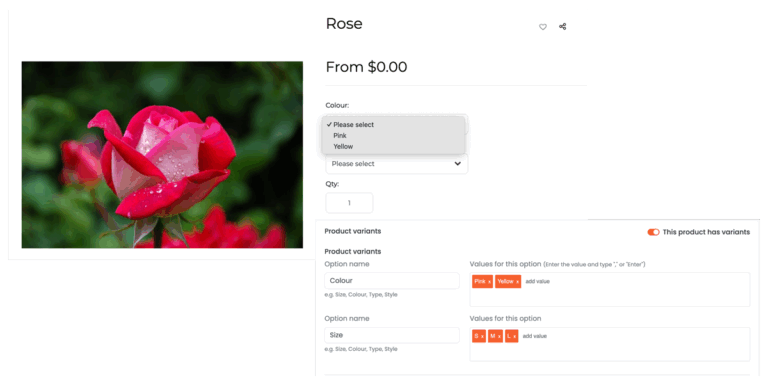
-
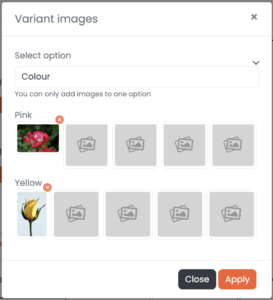
- Add/Edit Variant Images – you can add up to five images for each variant option
- Fill in Pricing and Other Details:
- Below the options, there is a table to fill out with details like ‘Price’, ‘Sale price’, ‘Member price’, ‘SKU’, ‘Shipping weight’, and ‘Stock Qty’ for each variant you have created
4. Edit inventory
If you have created product variants:
- Ensure each variant has a ‘Stock Qty’
- Scroll to the ‘Inventory’ section
- Click on the toggle to activate the feature
- The default number will be Zero, leave it here
- Below the stock quantity field, click the relevant checkboxes to:
- Click the ‘Save’ button on the top right of the page. By doing so, you will trigger a calculation which is the sum of the numbers in the ‘Stock Qty’ column. This number will now appear in the row in the ‘Inventory’ section
If you have not created variants for this product:
- Scroll to the ‘Inventory’ section
- Click on the toggle to activate the feature
- Enter the stock quantity for this product
- Below the stock quantity field, click the relevant checkboxes to:
5. Save your changes
- Scroll to the top of the product’s page.
- Click “Save” to make your updates.
Tips #
- Use Product Variants Wisely: If your products come in different options (like size or colour), make sure to accurately track inventory for each variant separately to avoid confusion.
- Export Inventory Data: Periodically export your inventory data to review your product performance and stock movement trends, which can help in making better stocking decisions.
Manage your inventory and add product variants all on the same page. #
That’s why we’re Australia’s most user-friendly ecommerce platform.
Read up on Little Big Shop’s products and inventory feature to learn more.


