Add and edit content panels in the Website builder #
The Little Big Shop Website Builder contains customisable content templates that are building blocks for your website and online store. Simply edit content panels in existing templates, or explore and add other options to achieve your desired look.
Read on to find out how you can use them to bring your online business to life.
Step-by-step instructions #
1. Access the Website builder
From the admin dashboard, navigate to and click on ‘Website builder’. A new tab will open in your web browser with the Website builder app.
2. Explore and add content panels
As discussed in the Website builder page and here, each store comes with a default ‘Shop’ page and the option to add and customise the following pages:
- Home
- Contact Us
- Shipping
- Blank
To add content panels, navigate towards the top right of the page you are on and select the plus button to ‘Add blocks’ and view other content panels you can add.

Scroll down to view the variety of content panel types to choose from.
To add a content panel, drag it into the template and drop it where you would like it to appear. Use the green lines as a guide where to drop it.
We briefly explain what each one is and provide some suggestions for how they can be used to bring your shop and website to life!
Header
Explore various header designs featuring your logo, navigation menus, and social media icons.
Banner
Ideal for promotional images or product visuals.
Testimonials
Add reviews or feedback from your customers to build trust.
Image
Also ideal for promotional images or product visuals.
HTML/Blank Panel
For custom HTML or to add a blank space.
Text
Use this for text-based content, like conveying your mission.
Pricing
Show pricing information in a clear, concise manner.
Teams
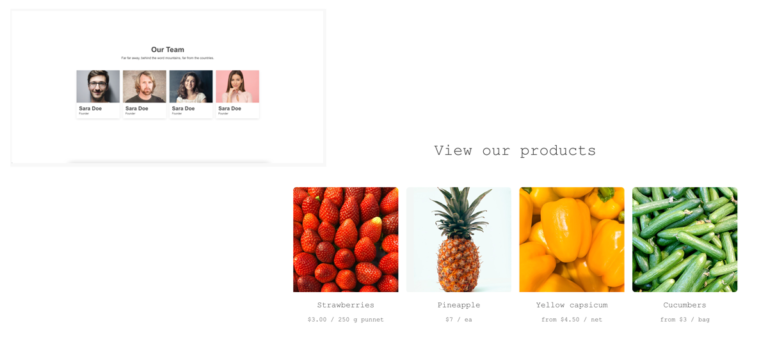
Introduce your business team or key members. Or, replace the text and content to showcase your products.
Here is an example of how this ‘Team’ template has been customised by a fruit shop to display products available to purchase.
Content
Use this for text-based content like product descriptions or informational sections
Features
Highlight the main features of your products or services
Footer
Customise your footer with essential links and social media icons
3. Edit & customise your content panel
Each content panel is customisable and contains editing options to help you achieve the look and feel you’re after. Here’s a run-down of a few of the options:
Font Style: The drop-down menu labeled ‘Arial’ allows you to select different font styles.
Font Size: The number ’40’ indicates the font size, which can be changed.
Paragraph Format: The ‘Heading 1’ drop-down menu provides options to set the text format (e.g., headings, normal text).
Link (chain icon): Insert hyperlinks by clicking this icon.
Image (picture icon): Click this to insert an image into the content panel.
Undo/Redo: The arrow icons allow you to undo or redo recent changes.
4. Preview & save your changes
- Before publishing any changes, click the button that looks like an eye to preview how your shop page will look
- If you’re not ready to publish, save your progress by clicking ‘Save as Draft’
- Once satisfied, click ‘Publish’ to make your changes live!
Tips #
- Plan your pages: What do you want to display on your home page? Your mission? New products? Highlight that everything is Australian made?
- Keep it simple: Ensure your content is clear and easy to readnby not overloading the panel with too many elements
- Enhance promotions by adding relevant images and links directly within the content panel to make navigation smoother for your users
Content panels allow for flexibility when building and customising your website. #
For more information on customising your Little Big Shop, and branding, check out the resources below:


